


Trigonometry for Game Programming – SpriteKit and Swift Tutorial: Part 2/2
Learn trigonometry for game programming using SpriteKit and Swift. You will learn the theory and then practice using trigonometry by making a space shooter game! By Bill Morefield.
Learn Trigonometry for Game Programming!

Learn Trigonometry for Game Programming!
Welcome back to the Trigonometry for Game Programming series!
In the first part of the series, you learned the basics of trigonometry and saw for yourself how useful it can be for making games.
In this second and final part of the series, you will extend your simple space game by adding missiles, an orbiting asteroid shield, and an animated “game over” screen. Along the way, you’ll also learn more about the sine and cosine functions and see some other useful ways to put the power of trig to work in your games.
Getting Started
Use the Download Materials button at the top or bottom of this tutorial to download the starter project.
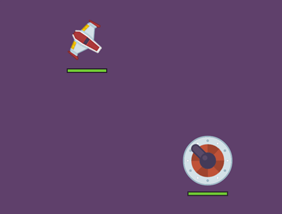
As of right now, your game has a spaceship and a rotating cannon, each with health bars. While they may be sworn enemies, neither has the ability to damage the other unless the spaceship flies right into the cannon (which works out better for the cannon).
Firing a Missile by Swiping
You will now give the player the ability to fire a missile from the spaceship by swiping the screen. The spaceship will launch a missile in the direction of the swipe.
Open GameScene.swift. Add the following properties to GameScene:
let playerMissileSprite = SKSpriteNode(imageNamed:"PlayerMissile")

var touchLocation = CGPoint.zero
var touchTime: CFTimeInterval = 0
You’ll move the missile sprite from the player’s ship in the direction it’s facing. You’ll use the touch location and time to track where and when the user taps on the screen to trigger a missile.
Then, add the following code to the end of didMove(to:):
playerMissileSprite.isHidden = true
addChild(playerMissileSprite)
Note that the missile sprite is hidden initially; you’ll only make it visible when the player fires. To increase the challenge, the player will only be able to have one missile in flight at a time.
To detect the first finger placed on the touchscreen, add the following method to GameScene:
override func touchesBegan(_ touches: Set<UITouch>, with event: UIEvent?) {
  guard let touch = touches.first else { return }
  let location = touch.location(in: self)
  touchLocation = location
  touchTime = CACurrentMediaTime()
}
This is pretty simple — whenever a touch is detected, you store the touch location and the time. The actual work happens in touchesEnded(_:with:), which you’ll add next:
override func touchesEnded(_ touches: Set<UITouch>, with event: UIEvent?) {
  let touchTimeThreshold: CFTimeInterval = 0.3
  let touchDistanceThreshold: CGFloat = 4

  guard CACurrentMediaTime() - touchTime < touchTimeThreshold,
    playerMissileSprite.isHidden,
    let touch = touches.first else { return }

  let location = touch.location(in: self)
  let swipe = CGVector(dx: location.x - touchLocation.x, dy: location.y - touchLocation.y)
  let swipeLength = sqrt(swipe.dx * swipe.dx + swipe.dy * swipe.dy)

  guard swipeLength > touchDistanceThreshold else { return }
  // TODO
}
The guard statement checks whether the elapsed time between starting and ending the swipe is less than the touchTimeThreshold value of 0.3 seconds. Then, check if the missile is hidden. If not, the player’s one allowed missle is in flight and the touch is ignored.
The next part works out what sort of gesture the user made; was it really a swipe, or just a tap? You should only launch missiles on swipes, not taps. You have done this sort of calculation a couple of times already — subtract two coordinates, then use the Pythagorean Theorem to find the distance between them. If the distance is greater than the touchDistanceThreshold value of 4 points, treat it as an intentional swipe.
There are two ways you could make the missile fly. The first option is to create a playerMissileVelocity vector, based on the angle that you’re aiming the missile. Inside update(_:), you would then add this velocity multiplied by the delta time to the missile sprite’s position each frame, and check if the missile has flown outside of the visible screen area so that it can be reset. This is similar to how you made the spaceship move in part 1 of this tutorial series.
Unlike the spaceship, the missile never changes course; it always flies in a straight line. So you can take a simpler approach and calculate the final destination of the missile in advance upon launch. With that information in hand, you can let SpriteKit animate the missile sprite to its final position for you.
This saves you from having to check whether the missile has left the visible screen. And, this is also an opportunity to do more interesting math!
To begin, replace the TODO comment in touchesEnded(_:with:) with the following code:
let angle = atan2(swipe.dy, swipe.dx)
playerMissileSprite.zRotation = angle - 90 * degreesToRadians
playerMissileSprite.position = playerSprite.position
playerMissileSprite.isHidden = false
Here, you use atan2(_:_:) to convert the swipe vector to an angle, set the sprite’s rotation and position, and make the missile sprite visible.
Now comes the interesting part. You know the starting position of the missile (spaceship’s current position) and you know the angle (derived from the player’s swipe motion). Therefore, you can calculate the destination point of the missile based on these facts.
Calculating Missile Destination
You already have the direction vector, and you learned in part 1 how to use normalization to set the length of a vector to whatever you need. But what length do you want? Well, that’s the challenging bit. Because you want the missile to stop when it moves outside the screen border, the length it travels depends on the starting position and direction.

The destination point always lies just outside the screen border instead of on the screen border. Hence, the missile will vanish when it completely flies out of sight. This is to make the game more visually appealing. To implement this, add another constant at the top of GameScene.swift:
let playerMissileRadius: CGFloat = 20
Finding the destination point is a bit complicated. For example, if you know that the player is shooting downward, you can work out the vertical distance the missile needs to fly. First, calculate the Y componenent by simply finding the sum of the missile starting Y-position and playerMissileRadius. Second, calculate the X component by determining where the missile will intersect that border line.
For missiles that fly off the bottom or top edges of the screen the X component of the destination can be calculated with the following formula:
destination.x = playerPosition.x + ((destination.y – playerPosition.y) / swipe.dy * swipe.dx)
This is similar to the normalization technique from part 1 where you scaled up a vector by first dividing both x and y components by the current length and then multiplying by the desired length. Here, you work out the ratio of the swipe vector’s Y component to the final distance. Then multiply the X component by the same value and add it to the ship’s current X position to get the destination X coordinate.
For missiles that go off the left or right edges, you essentially use the same function, but swap all the X and Y values.
This technique of extending a vector until it hits an edge is known as projection, and it’s very helpful for all sorts of game applications such as detecting if an enemy can see the player by projecting a vector along their line of sight and seeing if it hits a wall or the player.
There’s a snag. If the intersection point is near a corner, it’s not obvious which edge the missile will intersect first:
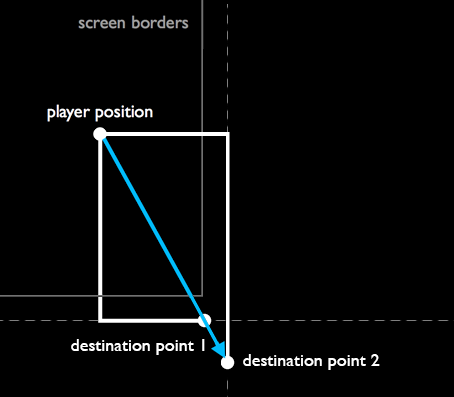
That’s OK. You’ll just calculate both intersection points, then see which is the shorter distance from the player!
Add the following code at the end of touchesEnded(_:with:):
//calculate vertical intersection point
var destination1 = CGPoint.zero
if swipe.dy > 0 {
  destination1.y = size.height + playerMissileRadius // top of screen
} else {
  destination1.y = -playerMissileRadius // bottom of screen
}
destination1.x = playerSprite.position.x +
  ((destination1.y - playerSprite.position.y) / swipe.dy * swipe.dx)

//calculate horizontal intersection point
var destination2 = CGPoint.zero
if swipe.dx > 0 {
  destination2.x = size.width + playerMissileRadius // right of screen
} else {
  destination2.x = -playerMissileRadius // left of screen
}
destination2.y = playerSprite.position.y +
  ((destination2.x - playerSprite.position.x) / swipe.dx * swipe.dy)
Here, you’re calculating the two candidate destination points for the missile; now you need to work out which is nearer to the player. Add the following code next, right below the code above:
// find out which is nearer
var destination = destination2
if abs(destination1.x) < abs(destination2.x) || abs(destination1.y) < abs(destination2.y) {
  destination = destination1
}
You could have used the Pythagorean theorem here to work out the diagonal distance from the player to each intersection point and chosen the shortest distance, but there's a quicker way. Since the two possible intersection points lie along the same vector, if either the X or Y component is shorter, then the distance as a whole must be shorter. Therefore, there's no need to calculate the diagonal length.
Right below the code you just added, add this last piece of code to touchesEnded(_:with:):
// run the sequence of actions for the firing
let missileMoveAction = SKAction.move(to: destination, duration: 2)
playerMissileSprite.run(missileMoveAction) {
  self.playerMissileSprite.isHidden = true
}
Build and run the app. You can now swipe to shoot bolts of plasma at the turret. Note that you can only fire one missile at a time. You have to wait until the previous missile has disappeared from the screen before firing again.
